

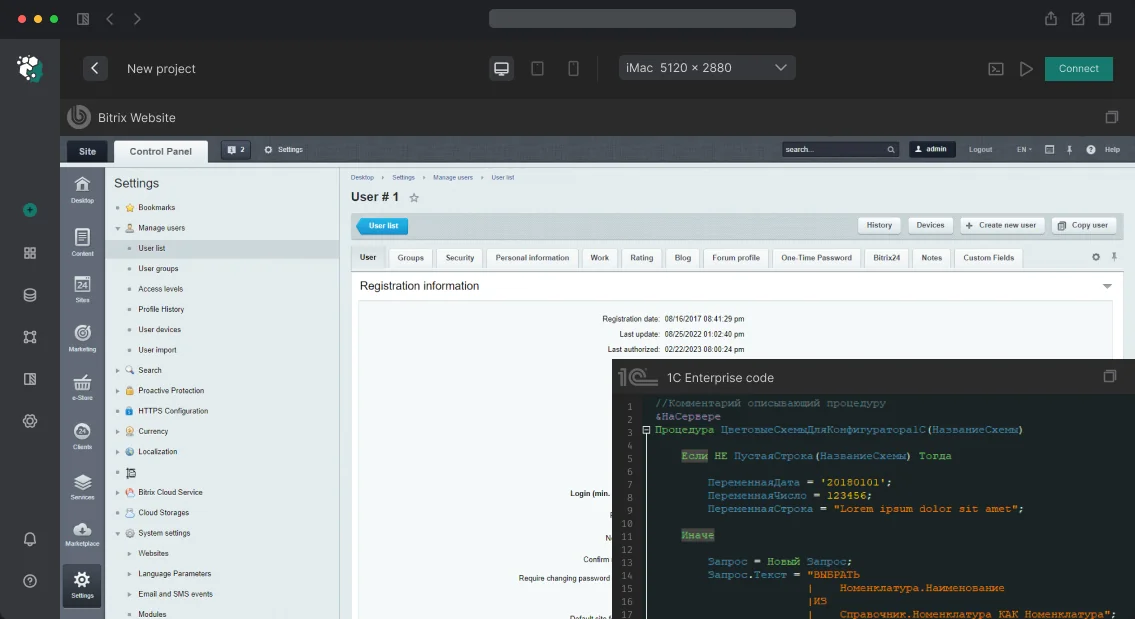
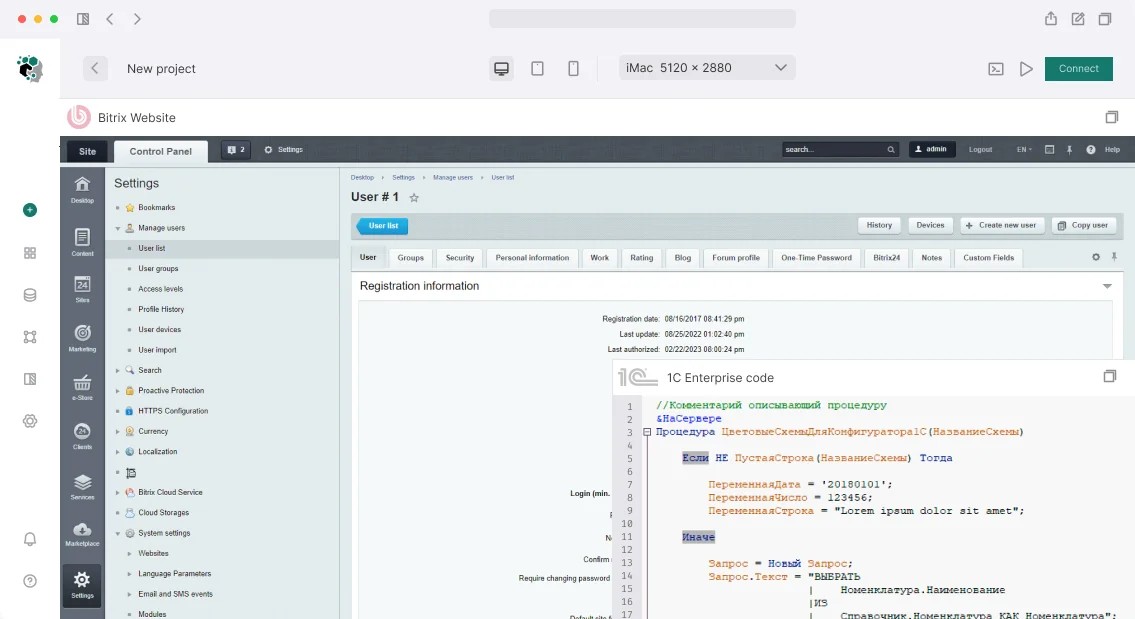
הגדרת הרשאות גישה לפאנל הניהול של 1C-Bitrix
תרחיש טיפוסי: מנהל תוכן מקבל גישה לפאנל הניהול ורואה את כל המודולים—כולל הגדרות שרת, גיבויים וניהול רישיונות. או ההפך: מנהל הזמנות לא יכול לפתוח את קטע ה-CRM הדרוש עקב הרשאות לא מספקות. ב-80% מהמקרים, הבעיה נובעת ממודל תפקידים שבור: מנהלים מעניקים הרשאות מוגזמות כדי להימנע מטיפול בפרטים. זה לא רק יוצר סיכון אבטחתי אלא גם מגדיל את הסיכוי לנזק מקרי להגדרות. מבנה הרשאות מתוכנן היטב פותר את שתי הבעיות.
אנחנו צוות של מומחי Bitrix מוסמכים עם ניסיון של למעלה מעשור. השלמנו יותר מ-50 פרויקטים של הגדרת הרשאות גישה לחנות מקוונת ופורטלים ארגוניים. המתודולוגיה שלנו הופכת משימות שגרתיות לאוטומטיות באמצעות ה-API ומקצרת את זמן ההגדרה בחצי בהשוואה לגישה הסטנדרטית. הזמינו ביקורת של ההרשאות הנוכחיות שלכם עוד היום.
כיצד פועלות הרשאות בקטע הניהול
הגישה לפאנל הניהול נשלטת במספר רמות. מודל התפקידים ב-Bitrix כולל:
- קבוצות משתמשים—משתמש חייב להשתייך לקבוצה עם זכות גישה למודול ספציפי
- הרשאות מודול—לכל מודול יש רמות D, R, W, X
- הרשאות קטעי אתר—נשלטות באמצעות
b_group_section
טבלאות מסד נתונים: b_user_group, b_group, הרשאות מודול מאוחסנות ב-b_option עם מפתח access_*. למידע נוסף, ראו תיעוד Bitrix.
תוכנית הרשאות טיפוסית לחנות מקוונת
| תפקיד | בלוקי מידע | חנות מקוונת | הגדרות מערכת | גיבוי |
|---|---|---|---|---|
| מנהל תוכן | W | W | D | D |
| מנהל הזמנות | R | W | D | D |
| מנהל מערכת | X | X | X | X |
כיצד להגדיר הרשאות למנהל תוכן ללא גישה להגדרות?
עבור מנהל תוכן טיפוסי, נדרשות הרשאות על המודולים "בלוקי מידע" (רמה W), "חנות מקוונת" (W) ו"ספריית מדיה" (W). המודולים "הגדרות מערכת" ו"גיבוי" צריכים להיות סגורים (רמה D). רמות מומלצות:
| מודול | מזהה מודול | רמה |
|---|---|---|
| בלוקי מידע | iblock |
W |
| חנות מקוונת | sale |
W |
| ספריית מדיה | fileman |
W |
| ניהול מבנה | main |
R |
| הגדרות מערכת | main (admin) |
D |
| גיבוי | backup |
D |
ההגדרה מתבצעת דרך Настройки → Пользователи → Группы пользователей → [группа] → Доступ к модулям. שלב אחר שלב:
- צרו קבוצה "מנהלי תוכן" בקטע "קבוצות משתמשים".
- הפעילו את הדגל "גישה לקטע ניהול" (
ADMIN_SECTION). - עברו ללשונית "הרשאת מודולים" והגדירו הרשאות לפי הטבלה.
- שמרו את הקבוצה והוסיפו משתמשים.
מה אם משתמש לא רואה קטע נדרש?
טעות נפוצה: המשתמש שייך לקבוצה עם הרשאות מודול, אבל הדגל ADMIN_SECTION לא מופעל. הסיבה השנייה היא הרשאות חסרות על הקטע האב בחלק הציבורי. בדקו את הדברים הבאים:
- המשתמש נמצא בקבוצה הנכונה.
- לקבוצה יש גישה לפאנל הניהול.
- הרשאות על תיקייה ברמה גבוהה יותר לא עוקפות את הגישה.
השוואה בין הגישה הסטנדרטית לשלנו:
| היבט | הגדרה סטנדרטית | השיטה שלנו |
|---|---|---|
| זמן | 4–6 שעות | 2–3 שעות (אוטומציה) |
| שגיאות | 30% מהמקרים דורשים עבודה חוזרת | <5% |
| תיעוד | לא כלול | כלול |
הגישה שלנו מהירה פי שניים ומפחיתה שגיאות פי 6 בהשוואה להגדרה ידנית. בפרויקט אחד לחנות מקוונת עם 50 עובדים, בנינו מודל תפקידים ב-3 שעות, וקיצרנו את זמן הענקת ההרשאות לעובדים חדשים מיום אחד ל-15 דקות. צרו קשר לניתוח מפורט של מערכת ההרשאות שלכם.
הענקת גישה לפאנל הניהול ללא קבוצת "מנהלי מערכת"
- צרו קבוצה נפרדת (לדוגמה, "מנהלי תוכן").
- בהגדרות הקבוצה, הפעילו את הדגל "גישה לקטע ניהול"—השדה
ADMIN_SECTIONבטבלתb_group. - הקצו הרשאות למודולים הנדרשים.
ללא הדגל ADMIN_SECTION, המשתמש לא יכול להתחבר ל-/bitrix/admin/, גם אם יש לו הרשאות ברמת מודול.
הרשאות על עמודים וקטעים ספציפיים
בנוסף להרשאות מודול, ניתן להגביל גישה לעמודים ספציפיים דרך הרשאות תיקייה על /bitrix/admin/: Рабочий стол → [правая кнопка] → Права доступа. או פרוגרמטית באמצעות CComponentEngine::SetComponentPath. גישה זו מסתירה קטעים בשימוש נדיר.
הרשאות דרך ה-API
// Проверить право пользователя на модуль
$APPLICATION->GetGroupRight('iblock'); // возвращает D/R/W/X
// Проверить, является ли текущий пользователь администратором
$USER->IsAdmin();
// Проверить принадлежность к группе
$USER->IsInGroup(5); // 5 - ID группы
מה כלול בעבודה
- ביקורת של מודל התפקידים וההרשאות הנוכחי
- עיצוב תוכנית אופטימלית (תפקידים: מנהל תוכן, מנהל הזמנות, מנהל מערכת)
- הגדרת קבוצות והרשאות מודול
- הגבלת גישה לעמודים
- תיעוד (תוכנית הרשאות והוראות למנהלים)
- הדרכת צוות (1–2 שעות)
- תמיכה עם אחריות לחודש
לוחות זמנים
הגדרה עבור 2–3 קבוצות עם תפקידים סטנדרטיים: 2 עד 4 שעות. מודל מורכב עם הגבלות מותאמות אישית: עד יום עסקים אחד. הזמן המדויק נקבע לאחר הביקורת. חיסכון בזמן ניהול לאחר היישום הוא 30–50%.
קבלו ייעוץ ממומחה מוסמך—נעריך את הפרויקט שלכם ונציע את הפתרון האופטימלי. צרו קשר להזמנת ביקורת הרשאות גישה.