




הגדרת תצוגה מקדימה חיה ב-Payload CMS: תצוגת תוכן מקדימה בזמן אמת
בעיה: עורכים לא רואים את התוכן לפני הפרסום
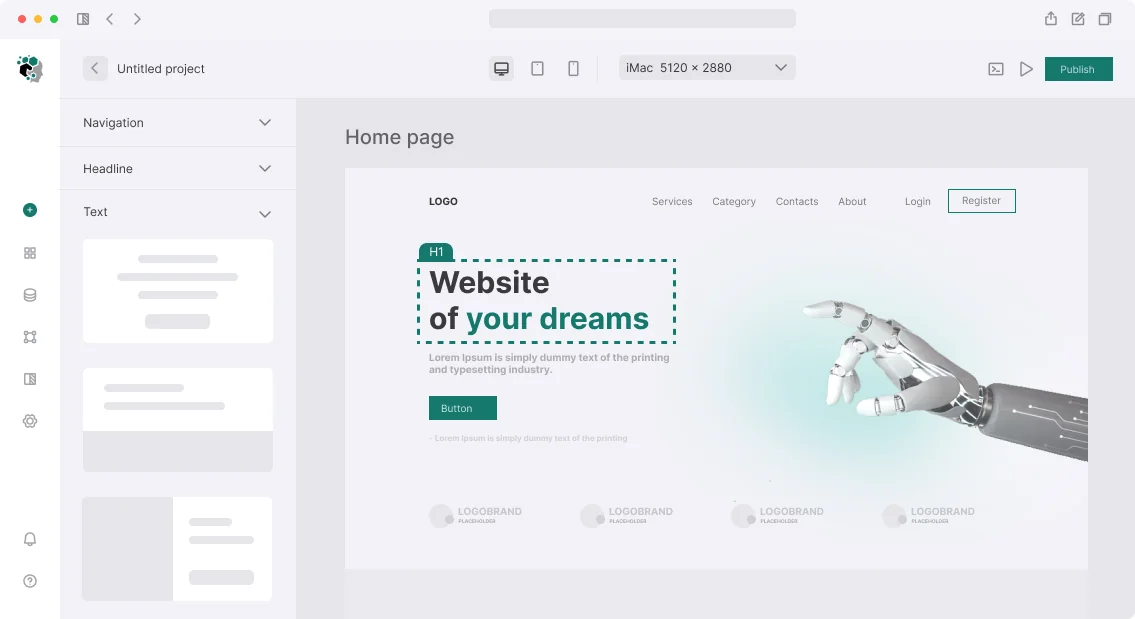
תארו לעצמכם עורך שמעדכן כותרת מאמר בפאנל הניהול של Payload CMS, אבל כדי לראות את התוצאה בחזית האתר, הוא צריך לשמור טיוטה, לפתוח כרטיסייה נפרדת, ולחכות לבנייה מחדש. זה מאט את העבודה ומסכן בפרסום תוכן לא גמור. תצוגה מקדימה חיה פותרת את זה: שינויים מופיעים בזמן אמת ישירות בפאנל הניהול.
למה זה מהיר יותר מתצוגה מקדימה מסורתית
תצוגה מקדימה מסורתית דורשת פריסה או בנייה מלאה לאחר כל שינוי — דקות של המתנה. תצוגה מקדימה חיה משתמשת ב-postMessage כדי לשלוח נתוני טיוטה לחזית האתר, ומציגה את הדף ב-iframe באופן מיידי. מדדנו: מהירות התצוגה המקדימה עולה פי 10–20 בהשוואה לבנייה מלאה מחדש. זה בולט במיוחד עם טקסטים, תמונות ובלוקים מקוננים.
| שיטה | זמן עדכון | דורש בנייה |
|---|---|---|
| תצוגה מקדימה מסורתית | 1–5 דקות | כן |
| תצוגה מקדימה חיה | 0.2–0.5 שניות | לא |
ההבדל הזה קריטי עבור עורכים שמטפלים בכמויות גדולות של תוכן. נתוני טיוטה מועברים דרך postMessage, מה שמבטל טעינות עמוד מחדש. לעומת זאת, גישה סטנדרטית ממתינה לרגנרציה סטטית או להפעלה מחדש של שרת הפיתוח.
איך תצוגה מקדימה חיה מאיצה את עבודת העריכה
עורכים רואים שינויים מיד לאחר הקלט — ללא שמירה או מעבר בין כרטיסיות. זה מקטין את מספר האיטרציות של תיקון תוכן. בפרויקט פורטל חדשות, קיצרנו את זמן הכנת המאמרים ב-40%. השתמשו בתצוגה מקדימה חיה אם יש לכם יותר משני עורכים ועדכוני תוכן תכופים.
מה דרוש לאינטגרציה עם Next.js
התקינו את החבילה @payloadcms/live-preview-react והגדירו מצב טיוטה (Draft Mode). הנקודה המרכזית היא יצירה נכונה של כתובות URL לתצוגה מקדימה עבור כל אוסף. אם כתובת ה-URL לא תואמת לנתיב הייצור, העורך יראה iframe ריק. אנו משתמשים בפונקציה שמקבלת slug ו-locale ובונה את כתובת ה-URL המלאה.
הגדרה ב-Payload:
// payload.config.ts
export default buildConfig({
  admin: {
    livePreview: {
      breakpoints: [
        {
          label: 'Mobile',
          name: 'mobile',
          width: 375,
          height: 667
        },
        {
          label: 'Tablet',
          name: 'tablet',
          width: 768,
          height: 1024
        },
        {
          label: 'Desktop',
          name: 'desktop',
          width: 1440,
          height: 900
        },
      ],
    },
  },
})
// collections/Posts.ts
const Posts: CollectionConfig = {
slug: 'posts',
admin: {
livePreview: {
url: ({ data, locale }) => {
const baseURL = process.env.NEXT_PUBLIC_FRONTEND_URL
return `${baseURL}/posts/${data?.slug || 'preview'}?locale=${locale?.code || 'ru'}`
},
},
},
}Next.js: ה-hook useLivePreview ומצב טיוטה
// app/(frontend)/posts/[slug]/page.tsx
import { LivePreviewListener } from './LivePreviewListener'

export default async function PostPage({ params, searchParams }) {
  const { isEnabled } = draftMode()
  const payload = await getPayload({ config })
  const result = await payload.find({
    collection: 'posts',
    where: {
      slug: {
        equals: params.slug
      }
    },
    draft: isEnabled,
    overrideAccess: isEnabled,
    locale: searchParams.locale || 'ru',
  })
  const post = result.docs[0]
  if (!post) notFound()
  return (
    <>
      {isEnabled && <LivePreviewListener initialData={post} />}
      <Article post={post} />
    </>
  )
}
// app/(frontend)/posts/[slug]/LivePreviewListener.tsx
'use client'
import { useLivePreview } from '@payloadcms/live-preview-react'
export const LivePreviewListener = ({ initialData }) => {
const { data } = useLivePreview({
initialData,
serverURL: process.env.NEXT_PUBLIC_SERVER_URL!,
depth: 2,
})
if (typeof document !== 'undefined' && data.title) {
document.title = data.title
}
return null
}// app/api/draft/route.ts
import { draftMode } from 'next/headers'
export async function GET(req: NextRequest) {
const secret = req.nextUrl.searchParams.get('secret')
if (secret !== process.env.PAYLOAD_DRAFT_SECRET) {
return NextResponse.json({ error: 'Invalid token' }, { status: 401 })
}
draftMode().enable()
// редирект на страницу превью
return NextResponse.redirect(new URL(`/posts/${req.nextUrl.searchParams.get('slug')}`, req.url))
}נקודות שבירה אופטימליות לתצוגה מקדימה חיה
אנו ממליצים על שלוש נקודות שבירה בסיסיות המכסות את רוב המכשירים. ההגדרה פשוטה: ספקו תווית, רוחב וגובה. עורכים יכולים לעבור ביניהן בתוך פאנל הניהול.
| מכשיר | רוחב | גובה |
|---|---|---|
| נייד | 375 | 667 |
| טאבלט | 768 | 1024 |
| מחשב שולחני | 1440 | 900 |
עבור רזולוציות לא סטנדרטיות (לדוגמה, 1920×1080), הוסיפו נקודות שבירה מותאמות אישית. זה שימושי במיוחד עבור אתרים עם פריסות קבועות. בפרויקט אחד, הגדרנו תצוגה מקדימה לפאנלי טלוויזיה ב-3840×2160 — נדרשה נקודת שבירה מותאמת אישית.
שגיאות אופייניות ביישום תצוגה מקדימה חיה
- אי-התאמה בכתובת URL: אם פאנל הניהול בונה כתובות URL לפי תבנית אחת והחזית משתמשת בתבנית אחרת, עורכים יראו שגיאת 404. ודאו את יצירת כתובות ה-URL עבור כל אוסף.
- כותרות CORS חסרות: ה-iframe לא ייטען ללא כותרת Content-Security-Policy. הגדירו את השרת לאפשר מסגור מהדומיין של פאנל הניהול.
- אי-התאמה בהידרציה: אם initialData לא תואם לנתוני השרת, React זורק שגיאה. ודאו ש-useLivePreview מקבל את הטיוטה הנוכחית — קריטי במיוחד עם React Server Components.
אנו מאבחנים בעיות כאלה תוך כמה שעות. קבלו ייעוץ לפרויקט שלכם — נעזור לכם להגדיר תצוגה מקדימה חיה כראוי.
תהליך הגדרה כולל
- ניתוח — זיהוי סוגי תוכן ומבנה כתובות URL.
- הגדרה — הגדרת נקודות שבירה ומחוללי כתובות URL עבור אוספים.
- אינטגרציה — חיבור useLivePreview לחזית והגדרת מצב טיוטה.
- בדיקות — אימות פעולה עבור כל סוגי התוכן והמכשירים.
- פריסה — העלאת השינויים לסביבת הייצור.
מה כלול בעבודה
- הגדרת תצוגה מקדימה חיה עבור 2–5 סוגי תוכן.
- הגדרת נקודות שבירה (נייד ומחשב שולחני).
- אינטגרציה עם חזית קיימת (Next.js).
- תיעוד עבור עורכים.
- הדרכת עורכים לשימוש בתצוגה המקדימה.
- חודש תמיכה לאחר היישום.
לוח זמנים משוער
מ-1 עד 3 ימים בהתאם למורכבות הפרויקט. התמחור מחושב באופן אישי לאחר הערכת היקף העבודה.
עבדנו עם Payload CMS במשך יותר מ-5 שנים והעברנו 10+ פרויקטים headless. הניסיון שלנו כולל תצוגה מקדימה חיה עבור חנויות מסחר אלקטרוני, בלוגים ואתרים ארגוניים. אנו מבטיחים פעולה יציבה לאחר היישום. צרו קשר כדי לדון בפרטים שלכם.
קוד המקור של התצוגה המקדימה החיה זמין ב-GitHub. הקפידו לעיין בתיעוד לפני ההגדרה.