


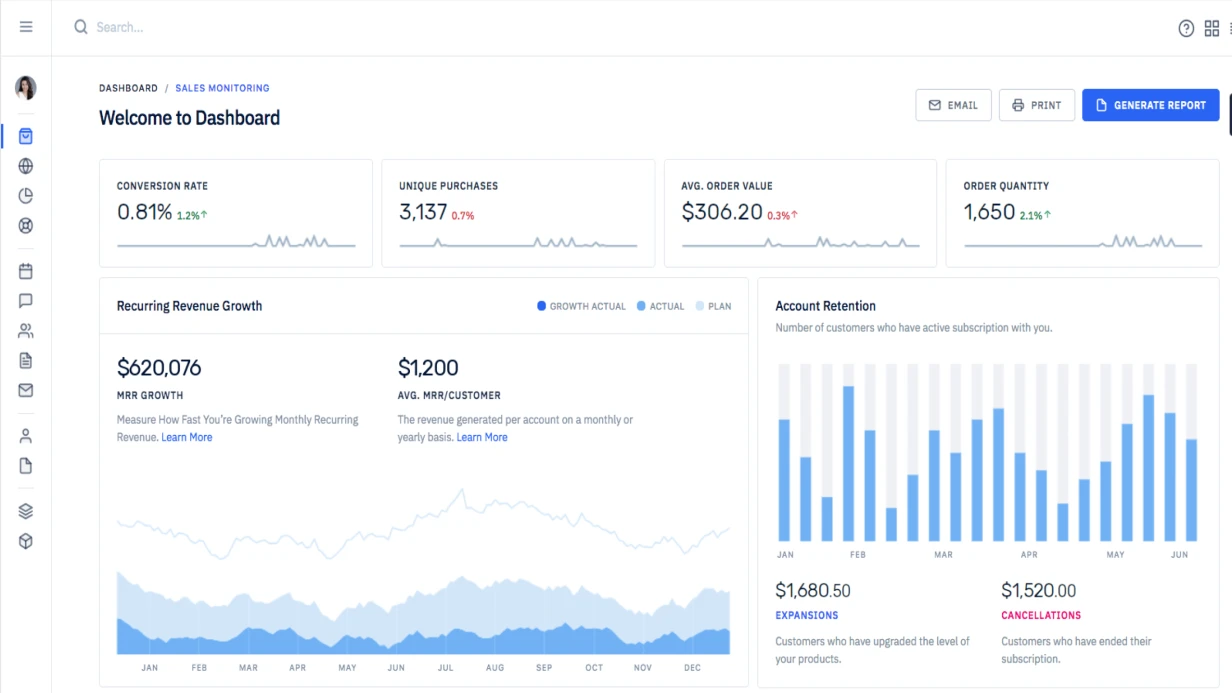


פיתוח תרשים גאנט מותאם אישית לניהול פרויקטים
תכנון פרויקט ללא הדמיה של משימות על ציר זמן הוא דרך ישירה לפספוס מועדים. צוותים מבלים שעות בתיאום לוחות זמנים, בעוד עומס יתר על משאבים נותר בלתי מורגש עד הרגע האחרון. מפתחים נתקלים לעתים קרובות בשאילתות N+1 בעת טעינת משימות או בחוסר התאמה בהידרציה ב-Next.js. אנו פותרים זאת עם BFF ו-Suspense, ומבטיחים טעינת תרשים חלקה ללא חסימת ה-thread הראשי.
אנו מפתחים תרשימי גאנט אינטראקטיביים לאתרים המציגים תלויות, התקדמות ועומס צוות. למהנדסים שלנו יש ניסיון של 10+ שנים בפיתוח רכיבי UI והם מבטיחים אינטגרציה עם כל טכנולוגיה (React, Vue, Angular, vanilla JS).
תרשים גאנט מציג משימות פרויקט על ציר זמן: התחלה/סיום, תלויות, אחוז התקדמות ועומס משאבים. פתרון מותאם אישית נותן שליטה מלאה על עיצוב וביצועים—לדוגמה, הצגת 10,000 משימות ללא פיגור. החיסכון בתקציב על תחזוקת תרשימים כאלה יכול להגיע ל-40% בהשוואה להטמעת מערכות BIM כבדות. עלות הפיתוח משתלמת בזכות גמישות והיעדר תכונות מיותרות.
מדוע גאנט מותאם אישית עדיף על ספרייה מוכנה?
ספריות מוכנות (DHTMLX Gantt, Bryntum Gantt) טובות לתרחישים טיפוסיים אך לרוב כוללות משקל עודף והתאמה אישית מוגבלת. פיתוח מותאם אישית על D3.js או React מספק:
- אופטימיזציה ל-Core Web Vitals (LCP < 2.5 שניות);
- כל אפקט ויזואלי (אנימציות, ערכות נושא);
- אינטגרציה עם מערכת ההרשאות ומאגר הנתונים הקיימים שלך.
לאחרונה השלמנו פרויקט לחברת בנייה: הם נזקקו לגאנט עם תכנון משאבים ונתיב קריטי. הספרייה המוכנה לא אפשרה צבעים מותאמים אישית לכל קבלן, אך רכיב SVG מותאם אישית השתלב במערכת העיצוב שלהם תוך 3 שבועות. פתרון זה צמצם את זמן האישור ב-30%.
כיצד לבחור את ספריית הגאנט המתאימה?
הבחירה תלויה במורכבות המשימה. לפרויקטים פשוטים עם 50–100 משימות, gantt-task-react—רכיב קוד פתוח עם גרירה ושחרור בסיסית—עובד היטב. אם יש צורך בהצגת תלויות ונתיב קריטי, DHTMLX Gantt עדיף. לעיצובים ייחודיים וביצועים גבוהים (10,000+ משימות), רכיב SVG מותאם אישית על D3.js הוא הפתרון המומלץ. הטבלה שלהלן מספקת המלצות.
| סוג משימה | פתרון מומלץ | לוח זמנים |
|---|---|---|
| עד 50 משימות, פריסה פשוטה | gantt-task-react | 3–5 ימים |
| 50–500 משימות, תלויות | DHTMLX Gantt | 1–2 שבועות |
| 500+ משימות, ממשק לא סטנדרטי | SVG/D3 מותאם אישית | החל משבועיים |
רשימה מלאה של פרמטרי תצורה
-
viewMode: יום, שבוע, חודש -
onDateChange: handler לשינוי תאריך -
onProgressChange: handler לשינוי התקדמות -
TooltipContent: tooltip מותאם אישית -
listCellWidth: רוחב עמודת שם המשימה -
ganttHeight: גובה התרשים -
todayColor: צבע הדגשה להיום
תרשים גאנט חושף את הנתיב הקריטי, מצביע על עומסי משאבים ומאפשר התאמות לוח זמנים בזמן אמת. גרירה ושחרור מפשטים את תזמון מחדש, ופסי התקדמות מציגים עיכובים. אינטגרציה עם CRM ומעקב משימות הופכת עדכוני נתונים לאוטומטיים.
מה כולל פתרון סוהר
| שלב | תוצאה |
|---|---|
| אנליטיקה | איסוף דרישות, בחירת ספרייה או ארכיטקטורה |
| עיצוב | אב טיפוס אינטראקציה, מפרט API |
| יישום | פריסת רכיב, אינטגרציית backend |
| גרירה ושחרור | הגדרת הזזת משימות, עדכוני תאריכים |
| בדיקות | בדיקות יחידה, בדיקות E2E (Cypress), בדיקת ביצועים |
| פריסה | פרסום ב-Vercel או העלאה ל-CMS |
איך אנחנו עושים זאת: טכנולוגיות ודוגמאות
gantt-task-react (קוד פתוח)
npm install gantt-task-react import { Gantt, Task, ViewMode } from 'gantt-task-react';
import 'gantt-task-react/dist/index.css';
interface ProjectTask {
id: string;
name: string;
start: Date;
end: Date;
progress: number;
type: 'task' | 'milestone' | 'project';
dependencies?: string[];
assignee?: string;
}
function ProjectGantt({ tasks, onTaskChange }: { tasks: ProjectTask[]; onTaskChange: (task: Task) => void; }) {
const [view, setView] = useState<ViewMode>(ViewMode.Week);
const ganttTasks: Task[] = tasks.map(t => ({
id: t.id,
name: t.name,
start: t.start,
end: t.end,
progress: t.progress,
type: t.type,
dependencies: t.dependencies ?? [],
styles: {
progressColor: t.progress >= 100 ? '#22c55e' : '#3b82f6',
progressSelectedColor: '#1d4ed8'
}
}));
return (
<div>
<div className="gantt-toolbar">
<button onClick={() => setView(ViewMode.Day)}>День</button>
<button onClick={() => setView(ViewMode.Week)}>Неделя</button>
<button onClick={() => setView(ViewMode.Month)}>Месяц</button>
</div>
<Gantt
tasks={ganttTasks}
viewMode={view}
onDateChange={onTaskChange}
onProgressChange={onTaskChange}
locale="ru"
listCellWidth="200px"
ganttHeight={400}
todayColor="rgba(59, 130, 246, 0.1)"
TooltipContent={({ task }) => (
<div className="gantt-tooltip">
<strong>{task.name}</strong>
<p>Начало: {format(task.start, 'dd.MM.yyyy')}</p>
<p>Конец: {format(task.end, 'dd.MM.yyyy')}</p>
<p>Прогресс: {task.progress}%</p>
</div>
)}
/>
</div>
);
}גאנט מותאם אישית על SVG + D3
לדרישות ספציפיות (סגנון ייחודי, תאים לא סטנדרטיים), אנו יוצרים רכיב על D3.js. להלן דוגמת אב טיפוס:
import { scaleTime } from 'd3-scale';
import { timeDay, timeWeek } from 'd3-time';
function CustomGantt({ tasks, startDate, endDate, width = 900 }) {
const timelineWidth = width - 200; // 200px на названия задач
const rowHeight = 40;
const height = tasks.length * rowHeight + 60;
const xScale = scaleTime()
.domain([startDate, endDate])
.range([0, timelineWidth]);
return (
<svg width={width} height={height}>
{/* Временны́е метки */}
{timeWeek.range(startDate, endDate).map(week => (
<g key={week.toISOString()}>
<line
x1={xScale(week) + 200}
y1={0}
x2={xScale(week) + 200}
y2={height}
stroke="#e5e7eb"
strokeWidth={1}
/>
<text x={xScale(week) + 204} y={15} fontSize={11} fill="#6b7280">
{format(week, 'dd MMM')}
</text>
</g>
))}
{/* Задачи */}
{tasks.map((task, i) => {
const x = xScale(task.start) + 200;
const width = xScale(task.end) - xScale(task.start);
const y = i * rowHeight + 25;
return (
<g key={task.id}>
{/* Название */}
<text
x={4}
y={y + 14}
fontSize={13}
fill="#374151"
style={{ cursor: 'pointer' }}
>
{task.name.length > 22 ? task.name.slice(0, 22) + '…' : task.name}
</text>
{/* Бар задачи */}
<rect x={x} y={y} width={width} height={24} rx={4} fill="#93c5fd" />
{/* Прогресс */}
<rect
x={x}
y={y}
width={width * (task.progress / 100)}
height={24}
rx={4}
fill="#3b82f6"
/>
{/* Процент */}
{width > 40 && (
<text
x={x + width / 2}
y={y + 16}
textAnchor="middle"
fontSize={11}
fill="white"
>
{task.progress}%
</text>
)}
</g>
);
})}
</svg>
);
}גרירה ושחרור לשינוי תאריכים
בשימוש ב-DHTMLX Gantt, גרירה ושחרור מובנית. ל-SVG מותאם אישית, אנו משתמשים ב-d3-drag או @dnd-kit. הניסיון שלנו מראה ש-npm install gantt-task-react יציב יותר עם React 18.
מדריך שלב אחר שלב לאינטגרציית רכיב גאנט
-
התקנת תלויות. עבור gantt-task-react:
import { Gantt, Task, ViewMode } from 'gantt-task-react'; import 'gantt-task-react/dist/index.css'; interface ProjectTask { id: string; name: string; start: Date; end: Date; progress: number; type: 'task' | 'milestone' | 'project'; dependencies?: string[]; assignee?: string; } function ProjectGantt({ tasks, onTaskChange }: { tasks: ProjectTask[]; onTaskChange: (task: Task) => void; }) { const [view, setView] = useState<ViewMode>(ViewMode.Week); const ganttTasks: Task[] = tasks.map(t => ({ id: t.id, name: t.name, start: t.start, end: t.end, progress: t.progress, type: t.type, dependencies: t.dependencies ?? [], styles: { progressColor: t.progress >= 100 ? '#22c55e' : '#3b82f6', progressSelectedColor: '#1d4ed8' } })); return ( <div> <div className="gantt-toolbar"> <button onClick={() => setView(ViewMode.Day)}>День</button> <button onClick={() => setView(ViewMode.Week)}>Неделя</button> <button onClick={() => setView(ViewMode.Month)}>Месяц</button> </div> <Gantt tasks={ganttTasks} viewMode={view} onDateChange={onTaskChange} onProgressChange={onTaskChange} locale="ru" listCellWidth="200px" ganttHeight={400} todayColor="rgba(59, 130, 246, 0.1)" TooltipContent={({ task }) => ( <div className="gantt-tooltip"> <strong>{task.name}</strong> <p>Начало: {format(task.start, 'dd.MM.yyyy')}</p> <p>Конец: {format(task.end, 'dd.MM.yyyy')}</p> <p>Прогресс: {task.progress}%</p> </div> )} /> </div> ); }. עבור D3:import { scaleTime } from 'd3-scale'; import { timeDay, timeWeek } from 'd3-time'; function CustomGantt({ tasks, startDate, endDate, width = 900 }) { const timelineWidth = width - 200; // 200px на названия задач const rowHeight = 40; const height = tasks.length * rowHeight + 60; const xScale = scaleTime() .domain([startDate, endDate]) .range([0, timelineWidth]); return ( <svg width={width} height={height}> {/* Временны́е метки */} {timeWeek.range(startDate, endDate).map(week => ( <g key={week.toISOString()}> <line x1={xScale(week) + 200} y1={0} x2={xScale(week) + 200} y2={height} stroke="#e5e7eb" strokeWidth={1} /> <text x={xScale(week) + 204} y={15} fontSize={11} fill="#6b7280" > {format(week, 'dd MMM')} </text> </g> ))} {/* Задачи */} {tasks.map((task, i) => { const x = xScale(task.start) + 200; const width = xScale(task.end) - xScale(task.start); const y = i * rowHeight + 25; return ( <g key={task.id}> {/* Название */} <text x={4} y={y + 14} fontSize={13} fill="#374151" style={{ cursor: 'pointer' }}> {task.name.length > 22 ? task.name.slice(0, 22) + '…' : task.name} </text> {/* Бар задачи */} <rect x={x} y={y} width={width} height={24} rx={4} fill="#93c5fd" /> {/* Прогресс */} <rect x={x} y={y} width={width * (task.progress / 100)} height={24} rx={4} fill="#3b82f6" /> {/* Процент */} {width > 40 && ( <text x={x + width / 2} y={y + 16} textAnchor="middle" fontSize={11} fill="white"> {task.progress}% </text> )} </g> ); })} </svg> ); }. - יצירת הרכיב. הגדר ממשק משימה והעבר את מערך המשימות לגאנט.
-
הגדרת handlers. יישם את
@dnd-kitו-npm install gantt-task-react date-fnsלסנכרון backend. - הוספת tooltips. השתמש ב-TooltipContent המובנה או ב-tooltip מותאם אישית.
- בדיקות. בדוק רינדור עם 1000+ משימות, מדוד LCP.
לוחות זמנים
| סוג גאנט | לוח זמנים |
|---|---|
| gantt-task-react עם tooltip מותאם אישית | 3–5 ימים |
| גאנט SVG מותאם אישית עם גרירה ושחרור ותלויות | 2–3 שבועות |
| גאנט מלא עם משאבים ונתיב קריטי | החל מ-4 שבועות |
קבל ייעוץ לפרויקט שלך—נעריך את המורכבות ונציע את הפתרון האופטימלי. הזמן פיתוח תרשים גאנט מותאם אישית וראה: רכיב מותאם אישית משתלם בזכות צמצום זמן האישור ב-30%. צור קשר להערכה מפורטת של הפרויקט שלך.