


פיתוח UX/UI למשחקים: מ-HUD ועד מלאי
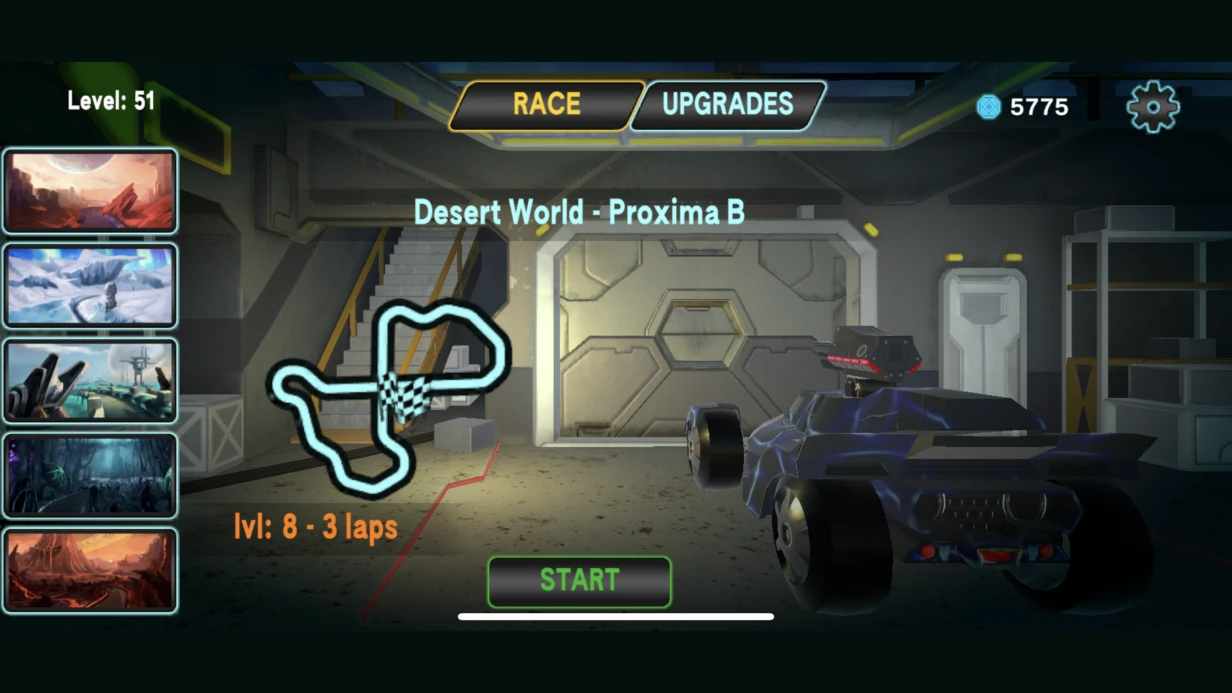
עיצוב UX/UI למשחקים העומדים בדרישות ביצועים ושימושיות מחמירות הוא דיסציפלינת הנדסה בפני עצמה. קחו לדוגמה HUD של משחק יריות: המידע חייב להיות קריא בראייה היקפית מבלי להסיח את הדעת מהקרב. מלאי במשחקי RPG נפתח לשניות אך נזכר לאורך זמן. משימות שונות, פתרון אחד: ממשקים שעובדים בכל מקום, ממכשירים ניידים ועד קונסולות. הגישה שלנו מפחיתה קריאות draw calls ב-20–30% בהשוואה ליישום טיפוסי, וחוסכת עד 15% מזמן הפריים.
למה ממשק משחק הוא דיסציפלינה נפרדת
בניגוד לעיצוב אתרים, ממשקי משחק עובדים בזמן אמת. כל קריאת draw call נוספת עלולה לגרום לירידת FPS. אנו מתחשבים בכך כבר משלב העיצוב: ממזערים את מספר רכיבי Canvas, משתמשים ב-batching ובאטלסים נכונים של גופנים. ניסיון של 10+ שנים בפיתוח משחקים מאפשר לנו לצפות צווארי בקבוק. לדוגמה, טעות טיפוסית היא שימוש ב-Canvas אחד לכל הממשק, הגורם לציור מחדש של מאות אלמנטים כאשר טיימר מתעדכן. הפתרון הוא פיצול ה-Canvas.
כיצד אנו מבטיחים ביצועי ממשק
Canvas עם Overlay במובייל
בעיה קלאסית: Unity מציירת מחדש את כל ה-Canvas כאשר כל אלמנט ילד משתנה. פתרון — הפרדת ה-Canvas לחלקים סטטיים ודינמיים, והצבת רכיב Canvas על אלמנטים המתעדכנים תדיר בנפרד. זה מפחית את מספר בניות ה-Canvas מחדש פי 3–4.
קנה מידה ליחסי גובה-רוחב שונים
Canvas Scaler במצב Scale With Screen Size עם Reference Resolution של 1920×1080 ו-Match = 0.5 הוא סטנדרטי אך לא פתרון קסם. ב-iPad (4:3) או במכשירים מתקפלים, הממשק נשבר. אנו קובעים עוגנים ב-RectTransform במודעות לכל אלמנט. עבור רזולוציות חריגות, אנו מוסיפים חוקים נוספים דרך Layout Group.
TextMeshPro ואטלס גופנים דינמי
אם למשחק יש מספר שפות עם קירילית, יוונית, ערבית — אטלס אחד אינו מספיק. כאשר תווים מתווספים בזמן ריצה, Unity אורזת מחדש את האטלס, וגורמת להקפאה של 2–5 אלפיות השנייה. עבור מסכים קריטיים, אנו משתמשים באטלסים סטטיים עם סט תווים מפורש. זה מבטל לחלוטין הקפאות הקשורות לאטלס.
ביצועי אנימציות
אנימציות ממשק הופכות לעיתים קרובות לצוואר בקבוק. DOTween ו-LeanTween עובדות עם טרנספורמציות ישירות, ועוקפות את Animator Controller, מה שמפחית את עומס המעבד. השוואה: אנימציית קנה מידה של כפתור דרך Animator אורכת כ-1.2 אלפיות השנייה, דרך DOTween — 0.4 אלפיות השנייה. על 20 אלמנטים מונפשים בו-זמנית, ההבדל הופך קריטי. הזמינו פיתוח ממשק עם אופטימיזציות אלה בראש.
כיצד למדוד ביצועי ממשק
אנו משתמשים ב-Unity Profiler: בודקים CPU Usage → Canvas.BuildBatch ו-Canvas.SendWillRenderCanvases. היעד למכשירים ניידים הוא לא יותר מ-2 אלפיות השנייה לעיבוד ממשק. טבלת יעדים:
| קטגוריה | תקציב FPS | תקציב ממשק |
|---|---|---|
| מובייל (60fps) | 16.7 אלפיות השנייה | 2–3 אלפיות השנייה |
| קונסולה (30fps) | 33.3 אלפיות השנייה | 4–5 אלפיות השנייה |
| PC (60fps) | 16.7 אלפיות השנייה | 3–5 אלפיות השנייה |
חריגה מתקציב הממשק מובילה לגמגומים.
כיצד אנו מעצבים ממשק משחק
HUD: מידע ללא הסחת דעת
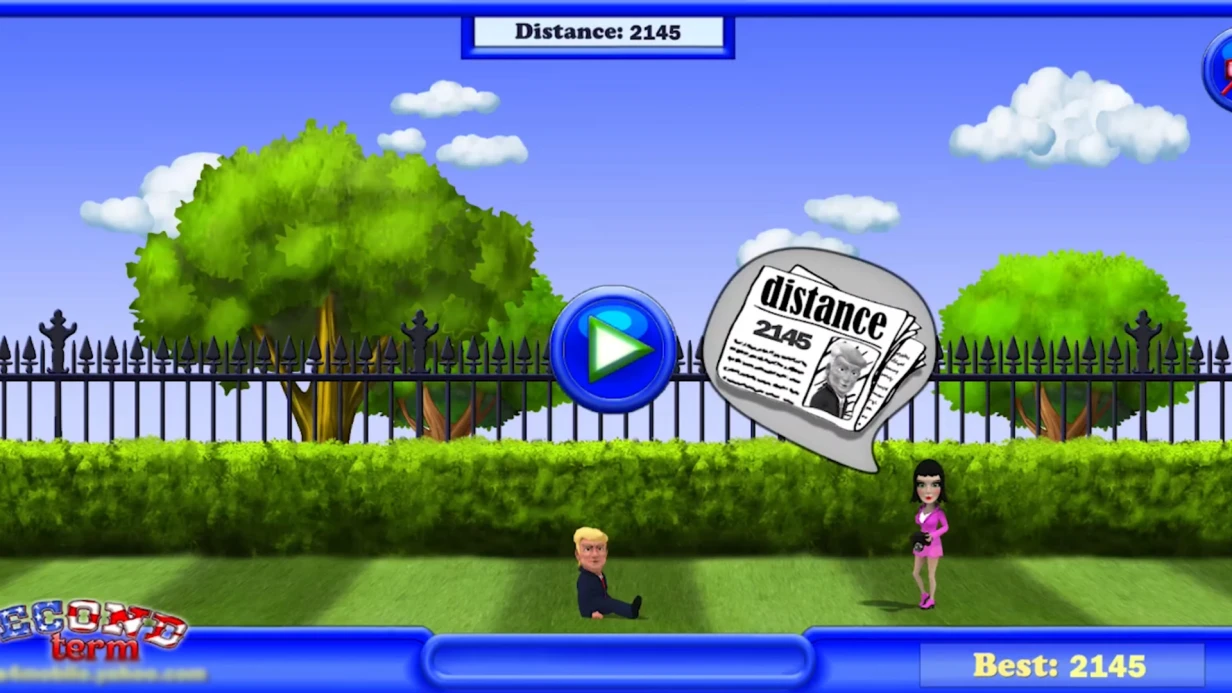
HUD טוב הופך מידע לזמין מבלי לדרוש ריכוז. אנו עובדים על עקרון המידע הסביבתי: פס החיים משנה צבע כאשר הוא יורד, ומהבהב ברמה קריטית. עבור כל אלמנט, אנו מגדירים תדירות עדכון: פס חיים — בכל פגיעה, מיני-מפה — כל 0.5 שניות, טיימר — כל שנייה. עדכון עם מצבר במקום עדכון ישיר בכל פריים מפחית את עומס בניית ה-Canvas מחדש.
מסכי תפריט וניווט
ניווט דרך NavigationGraph ב-Unity UI — לתמיכה בגיימפד ומקלדת. אנו קובעים ניווט מפורש לכל כפתור, ולא מסתמכים על אוטומטי. אנימציות מעבר — דרך DOTween או LeanTween, לא דרך Animator למקרים פשוטים. לאנימציות רצף מורכבות, אנו משתמשים ב-Animator עם AnimationEvent.
מלאי וגרירה-ושחרור
גרירה-ושחרור מיושמת דרך הממשקים IBeginDragHandler, IDragHandler, IEndDragHandler. הבעיה העיקרית היא התנהגות בעת יציאה מ-ScrollRect. אנו מנהלים אירועים דרך EventSystem.current ומפרידים גלילה וגרירה על ידי סף. וירטואליזציה של רשימות ארוכות — דרך Pooling + ScrollRect, תוך שימוש ב-ObjectPool<T> (מובנה מאז Unity 2021 LTS). לגרסת קונסולה, אנו מוסיפים תמיכה בגיימפד דרך EventSystem.
מה כלול בעבודה
- ביקורת UX של ממשק קיים או עיצוב מאפס
- ספריית רכיבים ב-Figma עם וריאנטים של מצבים
- הרכבה ב-Unity עם אנימציות ואינטגרציה עם המשחק
- התאמה לכל פלטפורמות היעד (iOS, Android, PC, קונסולות)
- בקרת איכות על מכשירים: אזור בטוח לחריץ, צפיפויות שונות, יחסי גובה-רוחב
- תיעוד יישום והמלצות תחזוקה
לוח זמנים ועלות
| שלב | לוח זמנים |
|---|---|
| ביקורת UX | 3–5 ימים |
| עיצוב ב-Figma | 1–2 שבועות |
| יישום ב-Unity | 1–3 שבועות |
| בקרת איכות והתאמה | 3–5 ימים |
העלות מחושבת באופן אישי לאחר ניתוח ההיקף ודרישות הפלטפורמה. HUD פשוט — משבוע, ערכת ממשק מלאה — מחודש. צרו קשר כדי לקבל ייעוץ והערכה ראשונית לפרויקט שלכם. אנו מבטיחים תהליך שקוף ומועדים קבועים.
לפרטים נוספים על היבטים טכניים, קראו את התיעוד הרשמי של Unity Canvas ואת תיעוד TextMeshPro.