


הכנת חומרים שיווקיים וצילומי מסך למשחקי מובייל
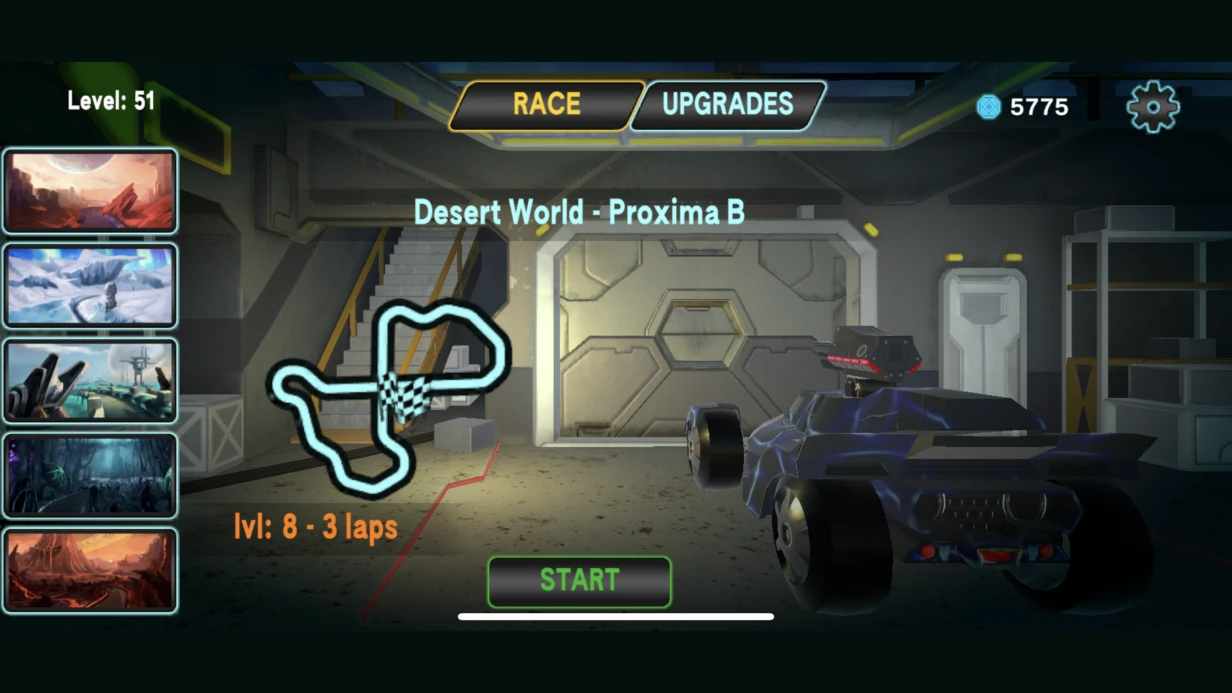
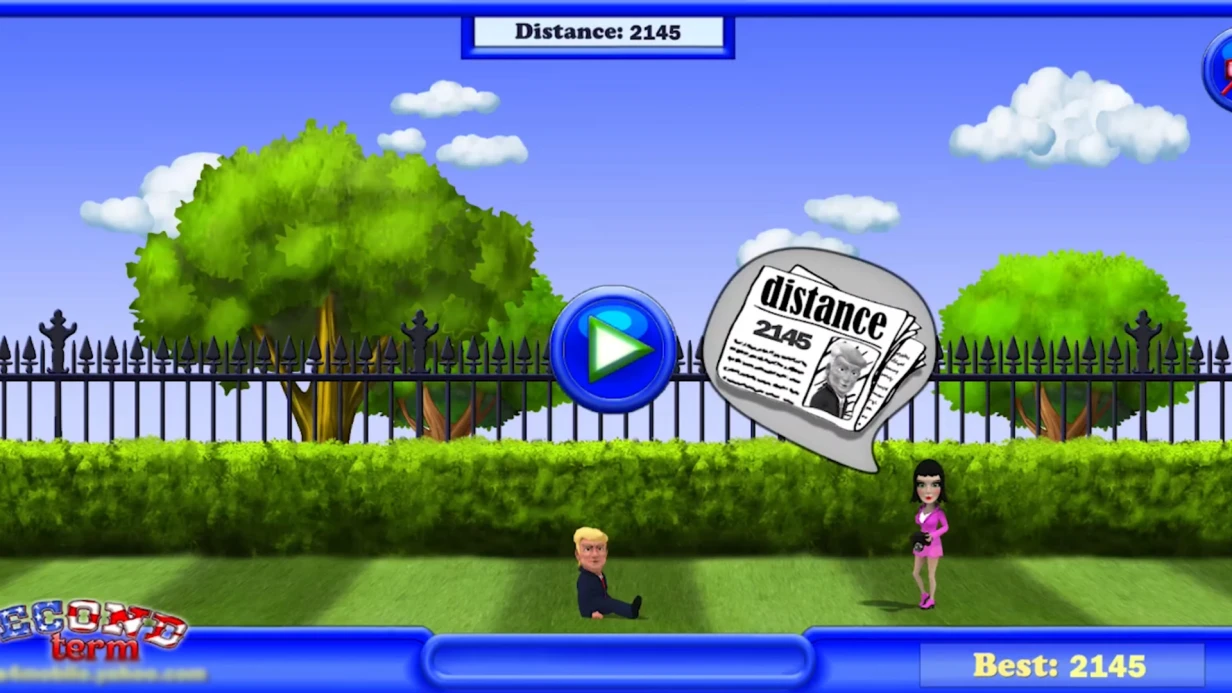
מפתחי משחקים מרבים לאבד המרות עקב צילומי מסך לא מותאמים בחנויות. אנחנו יודעים איך לתקן זאת. App Store דורש צילומי מסך עבור iPhone 6.7", 6.5", 5.5" ו-iPad Pro 12.9" — ארבעה גדלים שונים עם יחסי גובה-רוחב שונים. מתחרה עם משחק דומה אך עם צילומי מסך מעוצבים כהלכה, כולל טקסטים ממוקדים בשפה מקומית ו-USP ברור בשקופית הראשונה, מקבל המרה גבוהה פי 2-3. הניסיון שלנו בהכנת חומרים שיווקיים ליותר מ-50 פרויקטי משחק במשך 5+ שנים מאשר: גישה מקצועית משתלמת.
דרישות טכניות שלעתים קרובות מתעלמים מהן
App Store מקבל צילומי מסך בפורמט PNG או JPEG, עד 10 לכל שפה. הרזולוציה המינימלית עבור iPhone 15 Pro Max היא 1320×2868. חשוב: App Store מציג צילומי מסך חתוכים לפינות המעוגלות של המכשיר — אם בצילום מסך יש אלמנט קריטי בפינה, הוא ייחתך. עבור iPad נדרשת העלאה נפרדת, תמיכה בסיבוב (לרוחב/לאורך) קיימת, אך לא ניתן להעלות רק לרוחב ללא לאורך. לפי App Store Review Guidelines, צילומי מסך חייבים לשקף את המשחק בפועל.
Google Play דורש תמונת Feature Graphic (1024×500) — בלעדיה, האפליקציה שלך לא תופיע ברשימות המומלצות. צילומי מסך לטלפון: מינימום 2, מקסימום 8, יחס גובה-רוחב מ-16:9 עד 9:16. גרסאות עדכניות של Play Console מציגות תצוגה מקדימה של איך צילומי המסך ייראו בחיפוש — עם עיגול אוטומטי וצללים.
מגבלות גודל. צילומי מסך PNG עבור App Store לא יעלו על 500 MB בסך הכל בעת העלאה דרך Transporter. בפועל, PNG לא דחוסים מרנדר 4K יכולים לשקול 15-20 MB כל אחד — אופטימיזציה דרך pngquant או Squash היא חובה.
השוואה בין דרישות App Store ו-Google Play
| פרמטר | App Store | Google Play |
|---|---|---|
| פורמטים | PNG, JPEG | PNG, JPEG |
| מספר צילומי מסך | עד 10 לכל שפה | 2-8 |
| רזולוציה (דוגמה) | 1320×2868 (iPhone 15 Pro Max) | מ-16:9 עד 9:16 |
| Feature Graphic | לא נדרש | חובה 1024×500 |
| וידאו | עד 30 שניות | אופציונלי |
איך להכין צילומי מסך שמעלים המרה?
אנחנו משתמשים ברנדר מהמנוע ברזולוציה הנדרשת, לא בצילומי מסך מסימולטור. התהליך נראה כך:
- רנדור הסצנה דרך
Camera.Render()ל-RenderTextureבגודל הנדרש, ולאחר מכןTexture2D.ReadPixels()ו-EncodeToJPG/EncodeToPNG. זה נותן פריים ללא ממשק מערכת, עם שכבות דיבאג מושבתות, ובזווית צפייה (FOV) נכונה. - בחירת סצנה: צילום מסך ראשון — הפריים המרהיב ביותר מהמשחק או אלמנט אמנותי ראשי (נראה בחיפוש לפני לחיצה), שני ושלישי — מכניקות מפתח, אחרונים — הוכחה חברתית (דירוג, מספר שחקנים).
- הכנת טקסטים ממוקדים ב-Figma עם אזורי בטיחות נכונים לכל פורמט. לגרסאות מתורגמות — מערכת תבניות: שכבות טקסט מוחלפות ללא הרכבה מחדש של כל העיצוב.
- אופטימיזציית PNG דרך pngquant או Squash כדי לעמוד במגבלות החנות.
- בדיקה על מכשירים אמיתיים בנושאים כהים ובהירים.
גישה זו מניבה שיפור המרה פי 2-3 בהשוואה לצילומי מסך מסימולטור.
למה לא להשתמש בצילומי מסך מסימולטור?
צילומי מסך מסימולטור כוללים ממשק מערכת, עלולים להיות עם דחיסה לא אופטימלית, ולא מציגים את המשחק באור הטוב ביותר. רנדר מהמנוע נותן פריים נקי עם FOV נכון והגדרות פוסט-פרודקשן. בנוסף, אנחנו מבטיחים התאמה מושלמת לדרישות כל חנות.
תצוגות מקדימות וידאו
וידאו תצוגה מקדימה ב-App Store: עד 30 שניות, חייב להיות צילומי משחק (לא טריילר), מושתק כברירת מחדל (הפעלה אוטומטית ללא קול). דרישות הרזולוציה תואמות לצילומי מסך עבור המכשיר המתאים. הווידאו מקודד ב-H.264, אודיו AAC, בפורמט MOV או MP4. שלוש השניות הראשונות קריטיות כי משתמשים גוללים מהר ב-App Store.
רנדור וידאו שיווקי מ-Unity: Timeline + Cinemachine למיצוב מצלמה, חבילת Recorder ללכידה ברזולוציה הנדרשת ללא ירידת FPS. פוסט-פרודקשן (Color Grading, Bloom) מוגבר למקסימום — תוכן שיווקי לא מוגבל על ידי חומרת היעד.
מה כלול?
- הכנת צילומי מסך לפלטפורמה אחת: 2–4 ימים.
- סט מלא עבור App Store ו-Google Play (שפה אחת): 4–7 ימים.
- סט רב-לשוני (5 שפות): 2–3 שבועות.
- תצוגת וידאו מקדימה: תוספת של 3–7 ימים.
- אחריות לעמידה בדרישות החנות וייעוץ לאופטימיזציית המרה.
- קבצי מקור ב-Figma והמלצות להמשך לוקליזציה.
לוחות זמנים
| היקף העבודה | לוח זמנים |
|---|---|
| צילומי מסך לפלטפורמה אחת (5-6 יחידות) | 2–4 ימים |
| סט מלא (App Store + Google Play, שפה אחת) | 4–7 ימים |
| סט רב-לשוני (5 שפות) | 2–3 שבועות |
| + תצוגת וידאו מקדימה | +3–7 ימים |
העלות מחושבת לאחר הערכת היקף הלוקליזציה וזמינות נכסי האמנות המוכנים. החיסכון מהכנה נכונה — גידול בהמרה של 2-4%, שמביא להכנסה נוספת. צרו קשר כדי להעריך את הפרויקט שלכם — נחשב לוחות זמנים ועלות באופן אישי. הזמינו סט מלא של חומרים וקבלו עלייה בהמרה כבר בחודש הראשון.
טעויות נפוצות בהכנת צילומי מסך
- שימוש בצילומי מסך מסימולטור ללא פוסט-פרודקשן.
- התעלמות מאזורי בטיחות לטקסטים ממוקדים בפורמטים שונים.
- חוסר לוקליזציה של טקסטים על צילומי מסך.
- PNG לא מותאמים שחורגים ממגבלות החנות.
- חסרון של Feature Graphic עבור Google Play.