

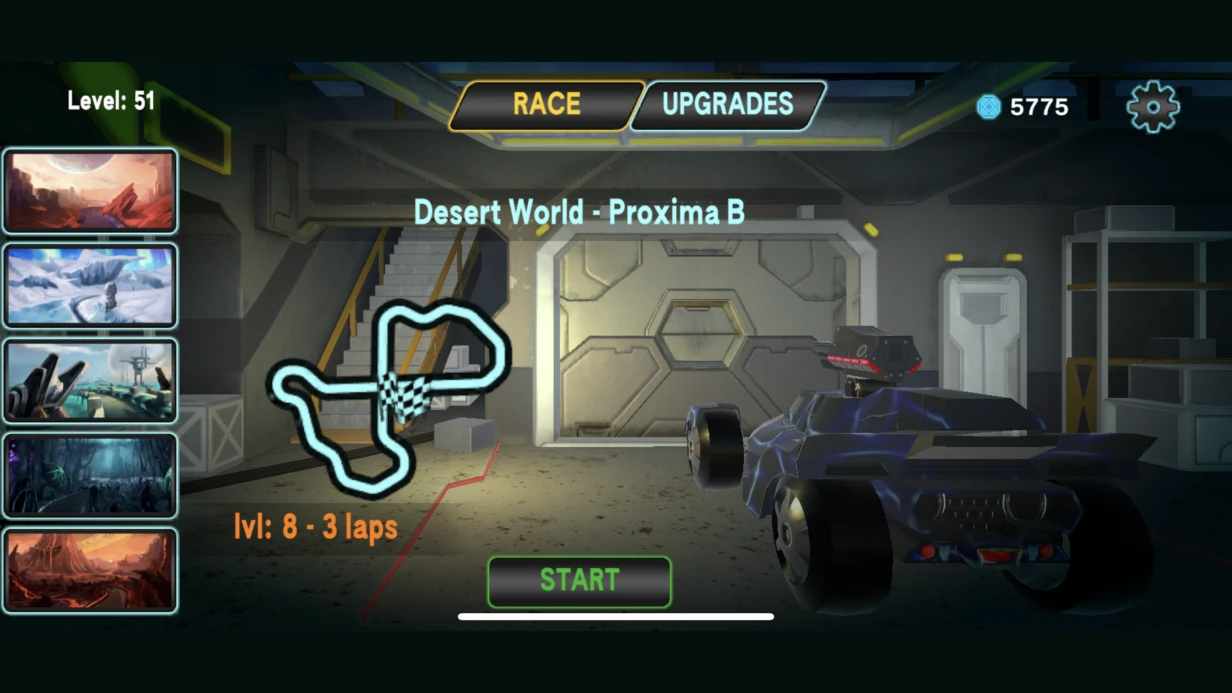

יצירת אנימציות UI למשחקים היא לא רק קישוט, אלא אלמנט פונקציונלי שמנחה את השחקן. אנו משלבים אנימציות ב-UI כמערכת איתות: כל מעבר, אישור, פרס או אזהרה צריך להיות קריא לשחקן ללא קריאת טקסט. אנימציה נכונה מפחיתה עומס קוגניטיבי ומאיצה את האינטראקציה. אנימציה רעה מרגיזה: איטית מדי מעכבת את המשחק, מהירה מדי לא מורגשת. למהנדסים שלנו יש ניסיון של 10+ שנים בפיתוח משחקים עם Unity ו-Unreal, ואנו מבטיחים שכל אנימציה עוברת בדיקת ביצועים. צרו קשר כדי לקבל אב-טיפוס אנימציה תוך יומיים.
יצירת אנימציות UI: בחירת כלים
Animator + Animation Clips – קלאסי תחת Unity. עובד דרך Animator Controller על אובייקט Canvas. יתרונות: נראות בעורך, תמיכה ב-Blend Trees, שליטה קלה דרך SetTrigger/SetBool. חסרונות: קשה לאנימציה למיקומים דינמיים. מתאים למעברים קבועים: פתיחה/סגירה של מסך, אפקט פולס על כפתור.
DOTween – דה פקטו סטנדרט לאנימציות UI מונחות קוד. RectTransform.DOAnchorPos(), CanvasGroup.DOFade(), Image.DOColor() דרך API נוח עם רצפים. DOTween.Sequence() עם .Append(), .Join(), .InsertCallback() בונה אנימציות מתואמות מורכבות. חשוב: כאשר SetUpdate(UpdateType.Normal, true) אנימציות נעצרות – השתמשו ב-transition-property: translate; transition-duration: 300ms; עבור ignoreTimeScale.
UI Toolkit Transitions – מעברים דמויי CSS: Ease.OutBack. הכי דקלרטיבי, אבל מוגבל לטרנספורמציות, אטימות וצבע. אידיאלי לאפקטי hover ומצבים פשוטים.
למה Easing ותזמון חשובים
טווחי משך שעובדים:
- מיקרו-פידבק (hover, לחיצה): 80–120 אלפיות שנייה
- הופעה/העלמות של אלמנט קטן: 150–200 אלפיות שנייה
- מעבר מסך: 250–350 אלפיות שנייה
- פרסים ואנימציות חגיגיות: 600–1200 אלפיות שנייה
כל דבר מעל 400 אלפיות שנייה למעברים שימושיים מרגיז בפתיחות חוזרות. שחקן פותח מלאי מאה פעמים בסשן – מעבר של 600 אלפיות שנייה = דקה של המתנה מבוזבזת.
פונקציות Easing אינן סימטריות: Ease Out (התחלה מהירה, סוף איטי) – לאלמנטים שמופיעים; Ease In (התחלה איטית, סוף מהיר) – לאלמנטים שנעלמים; Ease In/Out – למעברי מצב. Easing ליניארי כמעט אף פעם לא נחוץ – נראה מכני.
Overshoot ו-spring – כשפיזיקה מוצדקת. Ease.OutElastic (עוצמה 1.5–2.0) עובד מצוין להתראות פופ-אפ: האלמנט "קופץ" מעבר לגבולות וחוזר. Ease.OutBack – לפרסים אנרגטיים. אבל בפאנלים במסך מלא overshoot נראה לא טבעי – השתמשו רק באלמנטים קומפקטיים.
מקרה מבחן מהפרקטיקה שלנו: התראה על קבלת פריט
בפרויקט של לקוח, היינו צריכים אנימציה להתראה על קבלת פריט. יישום דרך DOTween Sequence:
- האייקון עף מלמטה עם
CanvasGroup.alphaבמשך 200 אלפיות שנייה - במקביל (+Join) דעיכה
DOFadeמ-0 ל-1 - אחרי 200 אלפיות שנייה, טקסט מופיע דרך
Ease.InCubicבמשך 150 אלפיות שנייה (+AppendInterval) - החזקה למשך 2 שניות, ואז העלמות: החלקה ימינה + דעיכה במשך 200 אלפיות שנייה עם
NotificationController.Show(item)
כל הרצף – 15 שורות קוד, בשימוש חוזר דרך DOTween.Kill(targetTransform). פתרנו את בעיית התור: כשמקבלים במהירות מספר פריטים, ההתראה החדשה דוחקת את הישנה דרך CanvasGroup.alpha.
איך אנימציות משפיעות על FPS
אנימציות ב-Canvas יכולות לגרום ל-Canvas Rebuild בעת שינוי מיקום, גודל או אטימות. RectTransform.position לא גורם ל-Rebuild, אבל שינוי DOAnchorPos כן. אנימציה דרך DOMove (מרחב מקומי) במקום transform.DOScale(). לאנימציות סקלה, השתמשו ב-IPointerEnter/Exit/Down – סקלה לא משפיעה על Layout, זה הסוג הכי זול. פצל אלמנטים עם אנימציה ל-Canvases נפרדים: אם אייקון מהבהב, ה-Rebuild שלו לא צריך לבנות מחדש את כל ה-HUD.
| סוג אנימציה | השפעה על ביצועים | המלצה |
|---|---|---|
| סקלה | נמוכה (מאוחסן ב-GPU) | השתמשו לכפתורים ואייקונים |
| מיקום (AnchoredPosition) | בינונית (מפעיל layout) | השתמשו למעברי מסך |
| אלפא (CanvasGroup) | נמוכה (ללא Rebuild) | אידיאלי לדעיכה/הופעה |
| רוטציה | גבוהה (מפעיל Rebuild) | הימנעו באנימציות תכופות |
מה לבחור לרצפים מורכבים
השוואה בין DOTween ל-Animator לאנימציות מרובות שלבים: DOTween מנצח בגמישות – יישום מהיר פי 3 (מבוסס קוד), אבל Animator מספק נראות טובה יותר בעורך. אם הרצף קבוע (למשל, אנימציית פתיחת חנות), Animator פשוט יותר. אם דינמי (תלוי בנתוני קרב), DOTween יעיל יותר.
אנימציית מצבים לכפתורים: ניואנסים
הכפתור הסטנדרטי עם ColorTween מוגבל. השתמשו ב-UIAnimation על DOTween או ב-handlers של Ease.OutQuad. אנימציית סקלה בלחיצה (סקלה 0.95 במשך 80 אלפיות שנייה, DOTween.Kill(targetTransform)) – פידבק טקטילי פשוט ויעיל לפלטפורמות ניידות.
איך ליישם תור אנימציות התראות שלב אחר שלב
- בקבלת התראה חדשה, בדקו אם tween פעיל. אם כן, קראו ל-
sequence.Play()עליו. - צרו Sequence חדש עם האנימציות הרצויות (הופעה, החזקה, העלמות).
- התחילו את הרצף דרך
sequence.Play(). - כדי למנוע הצטברות, הגדירו דגל שהאנימציה תפוסה, ואפסו אותו בסיום.
גישה זו מבטיחה דחיקה חלקה של התראות ישנות ושומרת על ביצועים גם בקריאות תכופות.
מה העבודה שלנו כוללת
- אב-טיפוס אנימציה על Canvas נפרד
- אינטגרציה לפרויקט Unity/Unreal קיים
- אופטימיזציית ביצועים (מזעור Canvas Rebuild)
- תיעוד על השמעה והגדרה
- תמיכה לאחר היישום
| סוג עבודה | לוחות זמנים |
|---|---|
| אנימציות למסך אחד (5–10 מעברים) | 2–5 ימים |
| אנימציית ערכת UI מלאה (10–15 מסכים) | 2–5 שבועות |
| אנימציות חגיגיות מורכבות | 1–2 שבועות |
| מערכת אנימציות מונחת קוד | 1–3 שבועות |
העלות מחושבת באופן אישי לאחר ניתוח דרישות. אנו נעריך את הפרויקט שלכם ונציע את הפתרון האופטימלי. הזמינו פיתוח אנימציות UI במפתח מלא או צרו קשר לייעוץ.
מידע נוסף על Canvas Rebuild: Unity Manual - Canvas